Admin panel · Security
Admin panel
Security
Change the 4-digit unlock code and the admin password, and set up the Manager Override button staff use to unlock the bay.
"The codes that protect this kiosk. They are stored scrambled (hashed), so the current ones are never shown."
This page is in the Look & Security group and is shown in both modes.
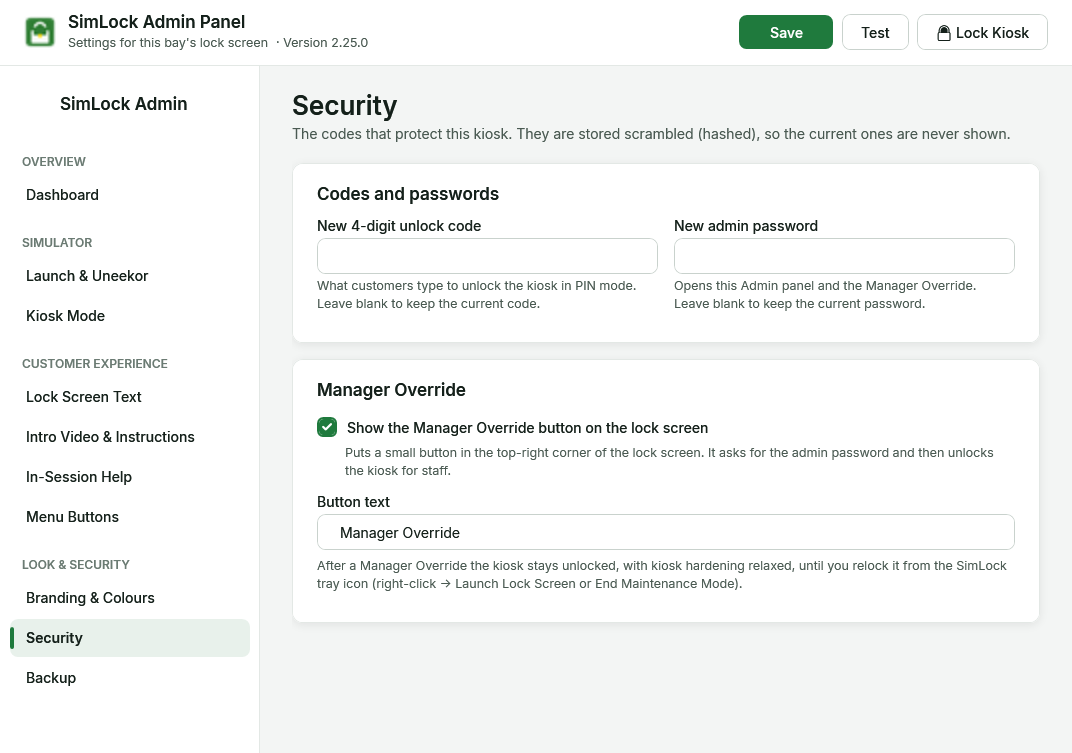 Codes and passwords on top, Manager Override below.
Change the codes
| Setting | Default on a new install | What it does |
|---|---|---|
| New 4-digit unlock code | 1234 |
"What customers type to unlock the kiosk in PIN mode. Leave blank to keep the current code." Must be exactly four digits. |
| New admin password | admin123 |
"Opens this Admin panel and the Manager Override. Leave blank to keep the current password." Also protects every item on the tray icon's menu except End Maintenance Mode. The box hides what you type. |
Type a new value and click Save. The boxes empty again after saving, because the stored values are hashes that cannot be turned back into the code.
Change both before the bay goes live
The defaults are printed in this guide. Anyone who reads it can unlock your bay until you change them. Write the new admin password down somewhere safe — it cannot be recovered, only reset by support.
Wrong-code protection: on the lock screen, five wrong unlock codes in a row pause the keypad for 30 seconds ("Too many attempts. Try again in 30 seconds.") and log a pin.lockout entry.
Upgrading and downgrading
Since 2.22.0 the password and code are stored as salted hashes. Upgrading converts your existing ones automatically (logged as credentials.migrated). Versions before 2.22 cannot read hashes, so if you ever install an older version, ask support to reset the password and code first.
Set up Manager Override
| Setting | Default | What it does |
|---|---|---|
| Show the Manager Override button on the lock screen | on | "Puts a small button in the top-right corner of the lock screen. It asks for the admin password and then unlocks the kiosk for staff." |
| Button text | Manager Override | The label on that button. |
"After a Manager Override the kiosk stays unlocked, with kiosk hardening relaxed, until you relock it from the SimLock tray icon (right-click → Launch Lock Screen or End Maintenance Mode)." You can also relock with Lock Kiosk in the Admin header.
While an override is on, the Dashboard's OPERATING MODE card turns red and reads "MANAGER OVERRIDE ON — kiosk unlocked. The next booking ends it." In Reservation Mode, an override that was already on when a booking starts ends by itself, the lock screen comes back and the tray shows "Manager Override ended — name's booking has started." An override started during a booking — staff fixing something for that golfer — is left alone.