Admin panel · Google Calendar
Admin panel
Google Calendar
Connect Google, pick the calendar that drives this bay, recognise golfers across bays, clean up names, and catch up on past bookings.
"In Reservation Mode this bay's lock screen follows your Google Calendar bookings. Connect the Google account that owns your bay calendars, then pick this bay's calendar."
This page is in the Bookings group and only appears when Kiosk Mode is set to Reservation Mode.
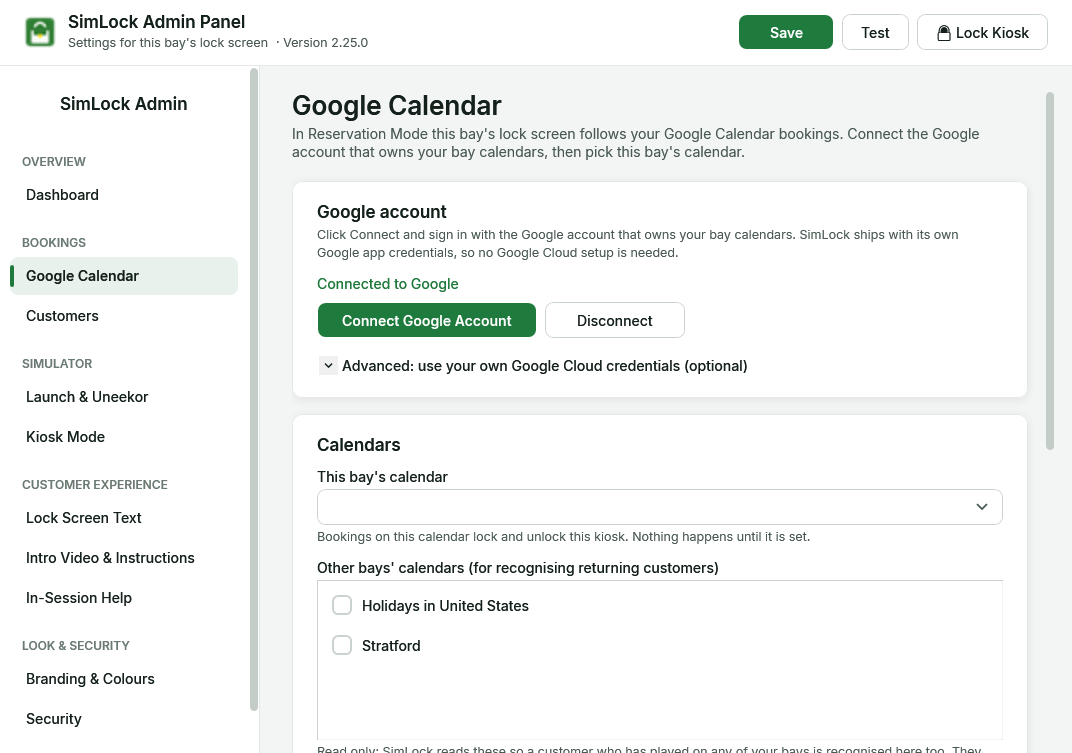 The Google Calendar page: Google account at the top, then calendars, name cleanup and catch-up.
Connect your Google account
- Under Google account, click Connect Google Account. A browser window opens.
- Sign in with the Google account that owns your bay calendars and allow calendar access.
- Back in the Admin panel you get "Connected. Found N calendars." and the status changes to connected.
SimLock ships with its own Google app credentials, so there is no Google Cloud setup. The sign-in is stored on the bay under C:\ProgramData\SimLock\GoogleAuth; you do not sign in again later.
Disconnect deletes that sign-in after a confirmation. Reservation Mode stops reading bookings until you reconnect.
Google's 'unverified app' warning
If Google shows "Google hasn't verified this app", click Advanced, then continue to SimLock. The data only moves between your bay and Google.
When Google needs you again
The background sync never opens a browser on the bay by itself. If Google's permission expires or is withdrawn, the activity log shows "Google needs reconnecting … open SimLock Admin → Calendar → Connect Google Account". Open this page and click Connect Google Account again.
Use your own Google Cloud credentials (optional)
"Only needed if your facility wants its own Google Cloud sign-in app instead of SimLock's built-in one." Expand Advanced to see a five-step guide whose buttons open the exact Google Cloud pages: create a project, enable the Google Calendar API, set up the OAuth consent screen, create an OAuth client ID, then connect. When both Client ID and Client secret are filled in they replace the built-in credentials the next time you click Connect. "Leave both empty to use SimLock's built-in Google sign-in."
Choose your calendars
| Setting | What it does |
|---|---|
| This bay's calendar | "Bookings on this calendar lock and unlock this kiosk. Nothing happens until it is set." |
| Other bays' calendars (for recognising returning customers) | "Read only: SimLock reads these so a customer who has played on any of your bays is recognised here too. They never lock this kiosk." Tick every bay except this one. |
| Refresh Calendar List | Reloads the list of calendars from Google without reconnecting. |
Click Save after changing either.
Set This bay's calendar or nothing will unlock
If This bay's calendar is blank, the bay never reacts to a booking, even with other bays ticked. Catch Up Now warns "'This Bay' is not selected — reservations will NOT lock/unlock this kiosk." If sync looks fine but the bay stays on the idle screen, check this first.
Clean up customer names
"Booking systems often add the location to the event title ("Jane Smith Stratford")." Type such words in Words to remove from customer names (comma-separated, e.g. Stratford, Bay 1) and click Save. They are removed from every synced name before it is matched against your customers, shown on the welcome screen, or saved. Matching is whole-word and ignores case. Saving also cleans names already in your customer list; a name is never blanked entirely.
Catch up on past bookings
"Reads past bookings from every calendar above into your customer list. Use it once after setting up, or after the kiosk was off for a while." Pick Look back (1 week, 1 month or 3 months) and click Catch Up Now. The status line underneath shows the result, for example "Last sync: 2026-10-01 14:05:11 · ok · 12 events", and keeps itself up to date while the page is open.
After a big catch-up, everyone imported sits at 0 visits and would see the intro video. Use Mark All Returning on Customers if they are existing regulars.
How syncing works
SimLock Monitor reads Google every 30 seconds, looking 24 hours back and 7 days ahead. If a read hangs or fails, the Monitor restarts its sync loop by itself and logs it. The lock screen checks every 2 seconds whether a booking on this bay is active. Bookings deleted or cancelled in Google disappear on the next sync; events that ended more than an hour ago are tidied away.
Status values you may see:
| Status | Meaning |
|---|---|
| ok | Every selected calendar was read. |
| partial: 1/3 calendars failed — … | Some calendars failed; their bookings were left as they were. |
| error: all calendars failed — … | Nothing could be read; nothing was changed. |
| error: no calendars selected | Nothing is picked in either list. |
| error: not connected or error: Google needs reconnecting (…) | The Google sign-in is missing, expired or withdrawn. Click Connect Google Account. |
| error: no Google credentials | No sign-in app is available. Should not happen on a normal install; contact support. (Filling in only one of Client ID / Client secret is ignored, and the built-in app is used.) |
| error: sync timed out | Google did not answer in time. It retries on the next cycle. |
How a booking becomes a golfer
For each booking, SimLock works out a name, email and phone in this order:
- The first guest who is not the organiser and has an email address.
- Lines in the event description such as
Customer: Jane Smith,Name:,Email:andPhone:. This is how RoundBook and similar booking systems pass the customer. - If there is still no name, the event title, minus leading times, "Reservation -" style prefixes and trailing "Bay N" tags.
All-day and cancelled events are skipped. When the golfer taps Start, SimLock looks them up by email, then phone plus name, then name alone. A match with one or more visits is a returning golfer; anything else is new. The visit count goes up by one, and a private "arrived" marker is written to the Google event so your other bays count the visit too. If that marker cannot be written, the activity log says so (customer.marker_failed).