Admin panel · Customers
Admin panel
Customers
Manage the customer list that decides who is a returning golfer, import a spreadsheet, and read the activity log behind every arrival.
"Everyone who has booked this bay or your other bays. Visits decides whether the intro video plays: 0 means a new customer."
This page is in the Bookings group and only appears in Reservation Mode.
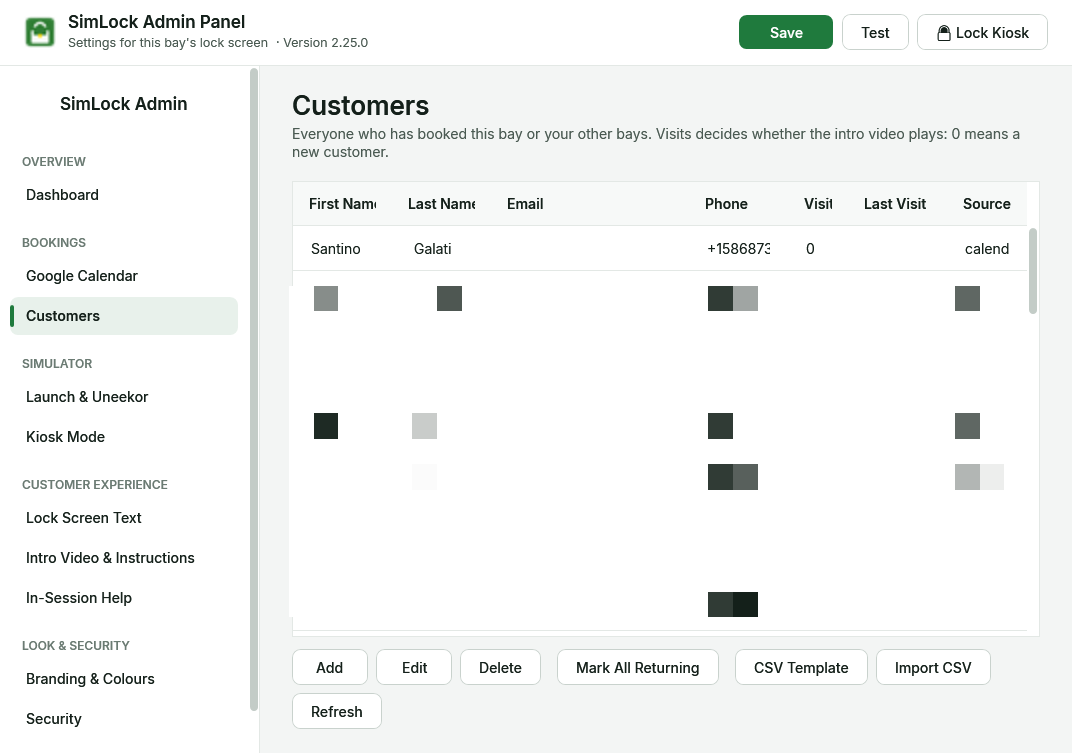 The Customers page: the customer grid and its buttons.
Who counts as returning
A golfer counts as returning when their booking matches a customer whose Visits is 1 or more. Everyone else is new: no match, or a match with 0 visits. New golfers watch the intro video if Play the intro video automatically for new customers is on; that setting is on Intro Video & Instructions.
Each time a golfer taps Start, their Visits goes up by one and Last Visit is set. A visit on another of your bays also counts: that bay writes a marker to the Google event, and this bay raises the customer to at least 1 visit on its next sync. For that to work, tick the other bays under Other bays' calendars on Google Calendar.
Matching is by email first, then phone plus name, then name alone. The name-only match ignores case and tolerates an extra word at the end of the last name ("Smith Stratford" matches "Smith").
Read the customer grid
| Column | Meaning |
|---|---|
| First Name, Last Name | The golfer's name as stored. |
| Lower-cased. Unique across the list. | |
| Phone | As entered. Matching ignores formatting and uses the last 10 digits. |
| Visits | Number of sessions started. 0 means new. |
| Last Visit | When the golfer last tapped Start. |
| Source | calendar (created by sync), csv_import, or manual (added here). |
Calendar sync creates a customer whenever a booking carries an email or phone number. A booking with only a name does not, so those golfers stay new unless you add them by hand. Refresh reloads the grid.
Add or edit a customer
Add opens an empty form; Edit opens the selected row. The form has First Name, Last Name, Email, Phone, Visits and Notes.
- At least one of Email or Phone is required.
- A phone-only customer needs a first or last name.
- Visits must be a whole number. Set it to 0 to make someone new again (they get the intro video), or 1 or more to mark them returning.
- Notes are for your own use and never shown on the lock screen.
Delete removes the selected customer after a confirmation. This cannot be undone.
Another bay can raise Visits again
If you set someone back to 0 visits but one of their past bookings still carries an "arrived" marker (on any of your bays), the next sync raises them to 1 again. This is by design: a visit anywhere counts.
Mark imported customers as returning
After a long Catch Up Now on Google Calendar, everyone pulled from past bookings sits at 0 visits and would see the intro video. Mark All Returning sets every 0-visit customer to 1 visit. A dialog reports how many changed. Customers already at 1 or more are untouched.
Import a list from a spreadsheet
- Click CSV Template and save
simlock-customers-template.csv. Its columns areFirstName,LastName,Email,Phone. - Fill it in. Every row needs an email or a phone; phone-only rows need a name.
- Click Import CSV and choose the file.
Rows that match an existing customer are skipped, not merged. The summary reads "Imported N, skipped N duplicates, N errors" and lists the first ten error rows. Imported customers arrive with 0 visits, so follow up with Mark All Returning if they are existing members.
Find the database and activity log
Everything on this page lives in C:\ProgramData\SimLock\customers.db, with customers.db-wal and customers.db-shm beside it (copy all three together). It holds the customer list, the synced bookings and the activity log shown on the Dashboard. The newest 500 log entries are kept; routine calendar syncs are only logged when something changes, so the log covers days, not hours.
Activity log entries you are most likely to need:
| Entry | When |
|---|---|
customer.lookup |
What the booking carried and whether it matched (amber when treated as new). |
customer.arrived |
A golfer tapped Start. |
customer.record_failed, customer.marker_failed |
The visit could not be saved, or the "arrived" marker could not be written to Google. |
calendar.sync, calendar.sync.error, calendar.watchdog |
Sync results, failures, and the Monitor restarting a stuck sync. |
session.launch, session.stop, session.ended |
Every launch step, including standby and launch-monitor messages; stopping the software; a booking ending. |
support.action |
A golfer used the in-session help menu. |
reservation.launch, reservation.active, lockscreen.relock |
The Monitor bringing the lock screen up for a booking, or relocking. |
maintenance.end, maintenance.override_ended |
A Manager Override ended — by you, or by the next booking. |
license.verified, license.offline, license.invalid, license.clock_rollback |
Daily licence checks. |
launcher.restart_failed |
The 4 AM Uneekor Launcher restart failed. |
pin.lockout |
Five wrong unlock codes in a row. |
custom.action, tool.download, config.*, mode.change, uneekor.configure, customers.cleanup |
Menu-button taps, helper downloads, settings saves and restores, mode changes, Launcher setup, name cleanup. |
A returning golfer got the intro video?
Read the customer.lookup entry for that arrival. It shows the email, phone and name the booking carried and which customer, if any, it matched.