Admin panel · Backup
Admin panel
Backup
Save this bay's settings to a profile file and load them onto another bay, and know what a profile deliberately leaves out.
"Save this bay's settings to a file, or load them onto another bay instead of typing them in again."
This page is in the Look & Security group and is shown in both modes. It arrived in 2.13.
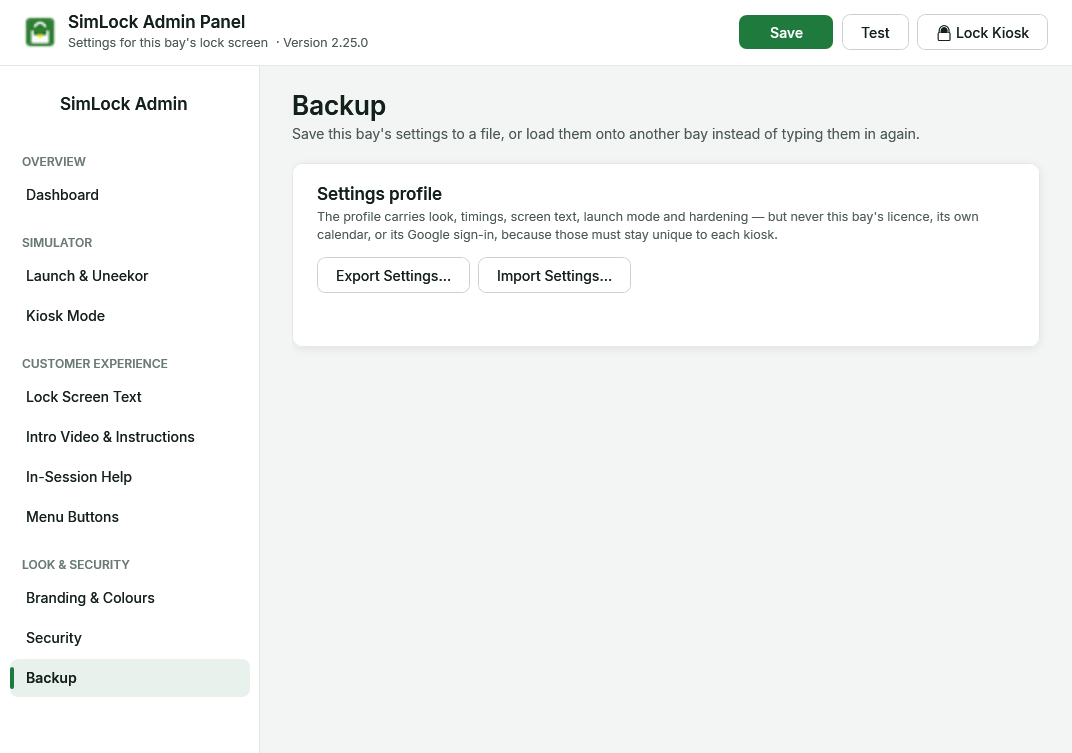 The Backup page: Export Settings and Import Settings.
What a profile carries
"The profile carries look, timings, screen text, launch mode and hardening — but never this bay's licence, its own calendar, or its Google sign-in, because those must stay unique to each kiosk."
| Travels with the profile | Stays on each bay |
|---|---|
| Operating mode, launch option, Uneekor and GSPro settings | The licence and its activation |
| Colours, font, logo and picture settings, screen text | This bay's calendar and the Other bays' calendars list |
| Intro video and instructions settings, menu buttons, help menu | The Google sign-in |
| The admin password and unlock code (as hashes) | Calendar sync status and any Manager Override in progress |
Logo, picture and video files are not inside the profile — only their settings. Copy C:\ProgramData\SimLock\Assets and Videos across too, or download the intro video again on the new bay.
Export this bay's settings
- Click Export Settings….
- Choose where to save. The suggested name is
simlock-profile-YYYY-MM-DD.simlockprofile. - A message confirms the export and reminds you what was left out.
Keep a profile from each bay somewhere safe; it is the quickest way back after a PC is replaced.
Import settings onto a bay
- Click Import Settings… and pick a
.simlockprofile(or.json) file. - Confirm. "This overwrites this bay's appearance, timings, screen text, launch mode and hardening with the settings in the file."
- Then, on this bay: connect Google on Google Calendar, choose This bay's calendar, and tick the other bays under Other bays' calendars so returning customers are recognised here.
- Restart the lock screen (for example with Lock Kiosk) so every setting takes effect.
A file that is not a SimLock profile, or one written by a newer version of SimLock, is refused and this bay's settings are left unchanged. Profiles exported from 2.24 import into 2.25 unchanged.
Automatic safety copy
Separately from profiles, every save keeps the previous settings as C:\ProgramData\SimLock\config.json.bak. If config.json goes missing, SimLock puts the copy back by itself (logged as config.restored). If it cannot be read, SimLock never saves factory defaults over it (logged as config.load_failed), so support can recover your settings.