Admin panel · Menu Buttons
Admin panel
Menu Buttons
Show or hide the standard PIN-mode menu buttons and add up to two of your own that open a program, website, video, PDF or picture.
"The buttons on the PIN-mode menu screen. Add up to two of your own, such as a rates page or a rules PDF."
This page is in the Customer Experience group and only appears in PIN mode — Reservation Mode has no menu screen. Its start button text is on Lock Screen Text.
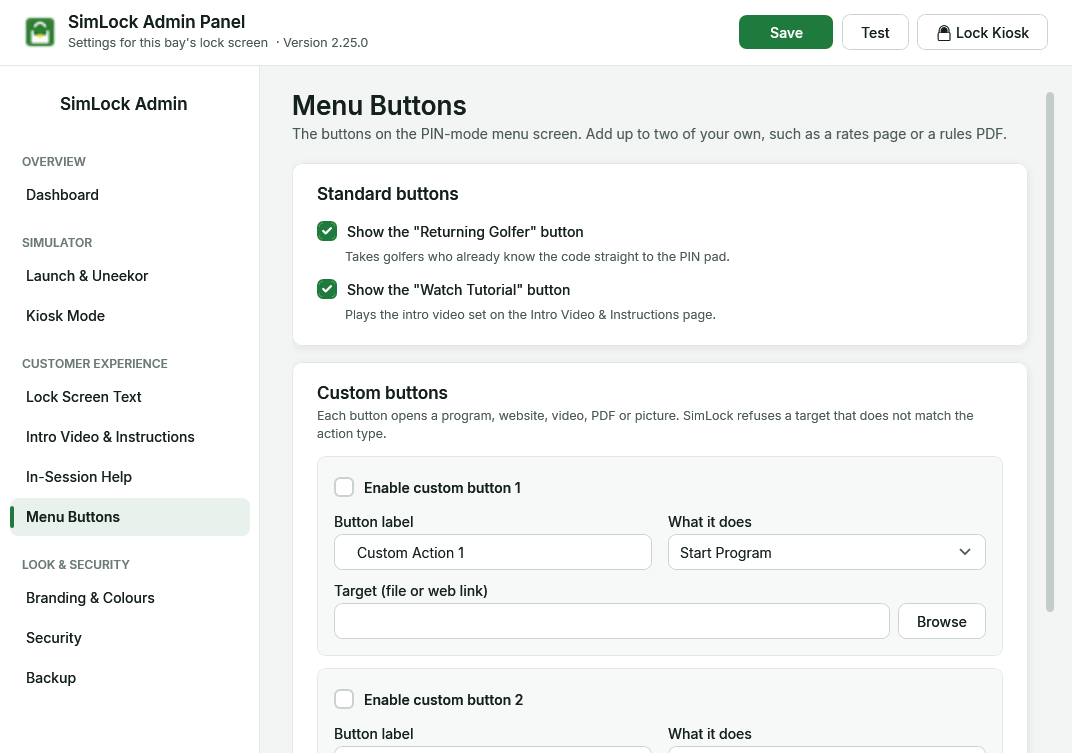 Standard buttons on top, the two custom buttons below.
Click Save when you are done. A running lock screen updates its buttons straight away.
Show or hide the standard buttons
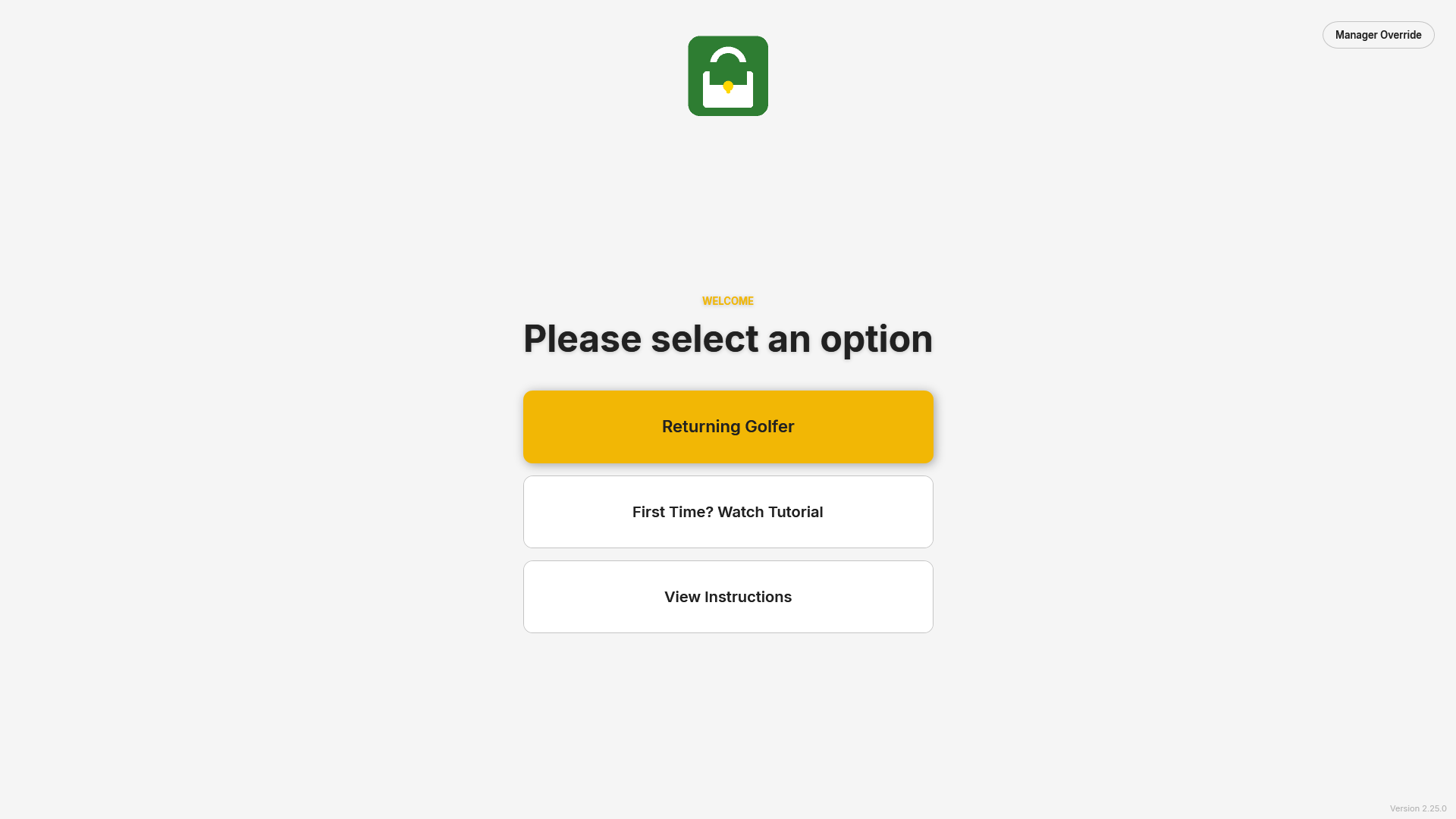 The main menu with both standard buttons.
| Setting | Default | What it does |
|---|---|---|
| Show the "Returning Golfer" button | on | "Takes golfers who already know the code straight to the PIN pad." The code is set on Security. |
| Show the "Watch Tutorial" button | on | "Plays the intro video set on the Intro Video & Instructions page." |
A third button, View Instructions, is turned on from Intro Video & Instructions.
Do not hide every way in
If you turn off Returning Golfer and add no custom button that unlocks, golfers have no way past the lock screen except a staff member with Manager Override.
Add a custom button
"Each button opens a program, website, video, PDF or picture. SimLock refuses a target that does not match the action type." Each of the two custom buttons has:
| Setting | Default | What it does |
|---|---|---|
| Enable custom button 1 / 2 | off | Shows the button on the menu, below the standard ones. |
| Button label | Custom Action 1 / 2 | The words on the button. |
| What it does | Start Program | See below. |
| Target (file or web link) | empty | The program, file or web address. Browse opens a file picker for the right kind of file; for a website, type the address. |
| What it does | Target must be | What happens |
|---|---|---|
| Start Program | an .exe that exists |
Starts it, then unlocks the kiosk. |
| Open Website | an http:// or https:// address |
Opens it in the default browser, then unlocks. |
| Play Local Video | a video file that exists | Plays it in SimLock's player. The kiosk stays locked and returns to the menu. |
| Open PDF Document | a .pdf that exists |
Opens it in the PDF viewer, then unlocks. |
| Open Picture | a .png, .jpg, .jpeg, .bmp, .gif or .webp that exists |
Opens it in the picture viewer, then unlocks. |
Since 2.23 SimLock checks the target when the button is tapped and refuses anything that does not match its type — for example an .exe behind an Open PDF Document button. The golfer sees a short message such as "File not found: …" or "'…' is not a PDF." and stays on the menu; the attempt is logged as custom.action.
Four of the five actions unlock the kiosk
Only Play Local Video keeps the lock screen up. A button that opens a program, website, PDF or picture hands the desktop to whoever tapped it, exactly as if they had entered the code. For a page that closes itself and keeps the bay locked, use the instructions screen on Intro Video & Instructions.
Keep target files on the bay PC (for example under C:\ProgramData\SimLock\), not on a USB stick or network share, and test each button with Test after saving.