Admin panel · Branding & Colours
Admin panel
Branding & Colours
Upload your logo, set the lock screen's colours and font, and — in PIN mode — the splash text and the background pictures for the splash, menu and PIN screens.
"Your logo, background pictures, colours and font on the lock screen. This Admin panel keeps its own look."
This page is in the Look & Security group. It replaces the old Appearance and Theme pages: every colour setting is now here, including the idle-screen text colours.
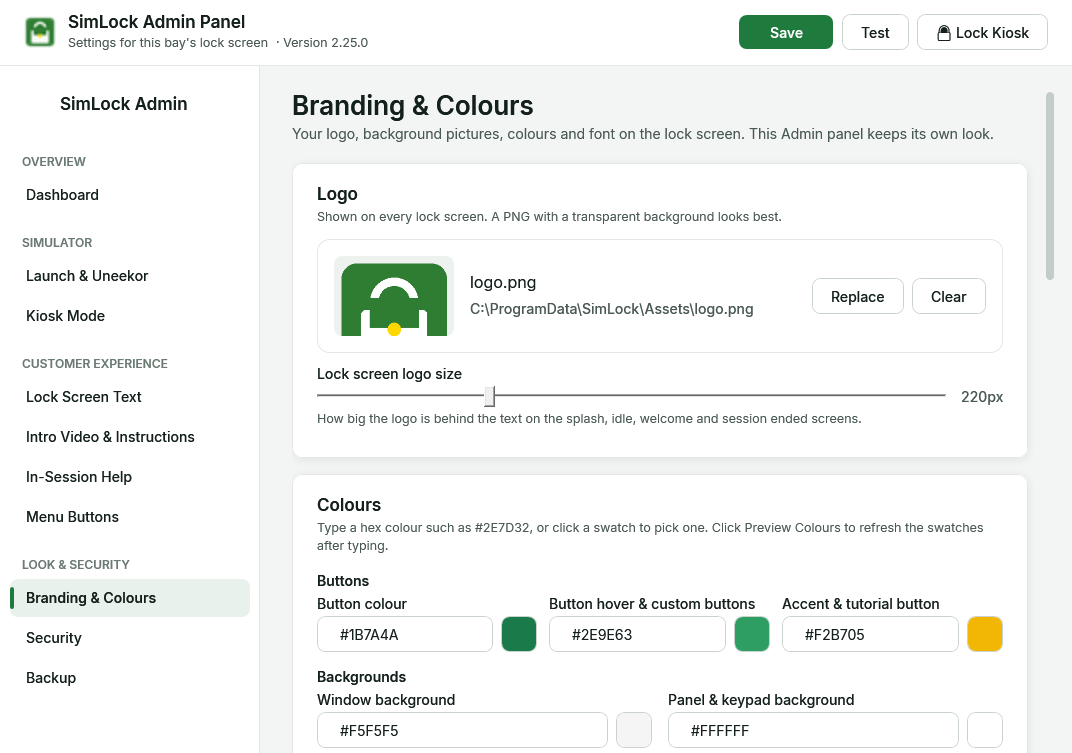 Branding & Colours in PIN mode: logo, colours, then the splash, menu and PIN screen sections.
Click Save when you are done. A running lock screen reloads its colours, font, pictures and logo within about a second, so you can keep it open on the bay's screen (or press Test) while you adjust.
Choose a picture
Every picture on this page uses the same drop box: drag a PNG, JPG, JPEG or BMP onto it, or click Browse…. SimLock copies the file into C:\ProgramData\SimLock\Assets\ and uses the copy, so you can delete the original or unplug the USB stick. The box then shows a thumbnail with Replace and Clear.
Upload your logo
"Shown on every lock screen. A PNG with a transparent background looks best."
| Setting | Default | What it does |
|---|---|---|
| Logo | the SimLock logo | Shown large behind the text on the splash, idle, welcome and session ended screens, and small on the menu, PIN and video screens. |
| Lock screen logo size | 220 px | "How big the logo is behind the text on the splash, idle, welcome and session ended screens." 80 to 600 px. |
Very wide logos are scaled by height, so a large size on a wide banner can run off the edge of a 1080p screen. A logo file that cannot be read is skipped and logged (assets.logo), and the rest of the screen still shows.
Set the colours
"Type a hex colour such as #2E7D32, or click a swatch to pick one. Click Preview Colours to refresh the swatches after typing." A value SimLock cannot read shows a grey swatch; fix it before you save.
Buttons
| Setting | Default | What it does |
|---|---|---|
| Button colour | #2E7D32 |
Thin outlines such as the "Touch anywhere to continue" pill and the walk-in message border. |
| Button hover & custom buttons | #4CAF50 |
Saved for compatibility; the current lock screen does not use it. |
| Accent & tutorial button | #FFC107 |
Fill of the main buttons (Returning Golfer, Tap to start), the hint text and the small eyebrow labels. |
Backgrounds
| Setting | Default | What it does |
|---|---|---|
| Window background | #F5F5F5 |
Behind every screen. |
| Panel & keypad background | #FFFFFF |
Cards, the keypad and the secondary menu buttons. |
| Splash screen background | empty | "Used instead of the window background on the splash screen when it has no picture. Leave empty to match the window." |
| Main menu background | empty | The same for the menu screen. |
| PIN entry background | empty | The same for the PIN screen. |
| Splash text box colour | empty | "The box behind the splash text. Leave empty to use the panel colour; type Transparent to hide it." |
Text and font
| Setting | Default | What it does |
|---|---|---|
| Main text colour | #212121 |
Titles and body text. |
| Subtitle & hint text | #616161 |
Subtitles, hints and small labels. |
| Lock screen font | Inter | "Inter is built in. Other fonts must be installed on this PC, or Inter is used." Also offered: Arial, Verdana, Calibri, Tahoma, Trebuchet MS, Georgia, Times New Roman, Consolas, Roboto, Open Sans, Montserrat. |
The font picker works from 2.25.0; in earlier versions it was saved but had no effect. A bay that had the old default "Segoe UI" saved now uses Inter.
Idle screen text (Reservation Mode)
"Colours for the idle screen's words. Leave empty to use the main and subtitle text colours above." Idle eyebrow colour, Idle title colour and Idle subtitle colour each have a swatch.
Reset or preview
- Reset to Default puts every colour (including the per-screen backgrounds, the splash text box and the idle colours) and the font back to SimLock's defaults. It only fills the boxes; click Save to apply.
- Preview Colours refreshes the swatches from what you typed.
Splash screen (PIN mode)
"The first screen a customer sees in PIN mode, before they tap to continue."
| Setting | Default | What it does |
|---|---|---|
| Splash title | Welcome to SimWoods Golf | Large heading. Change this to your facility's name. |
| Splash subtitle | Your Premium Golf Simulation Experience | Line under the title. |
| Splash title size | 48 | 24 to 120. |
| Splash subtitle size | 24 | 12 to 72. |
| "Touch anywhere to continue" hint size | 18 | 10 to 48. |
| Custom message size (splash) | 16 | 10 to 48. The message itself is on Lock Screen Text. |
| Use a background picture on the splash screen | off | Shows Splash background picture full-screen behind the text. |
| Splash text box opacity | 85% | "How solid the box behind the splash text is over a picture (0% = invisible). Its colour is set under Colours above." |
Menu and PIN screens (PIN mode)
"Optional background pictures. Without one, the screen uses its background colour." Tick Use a background picture on the menu screen or … on the PIN screen and choose the picture. A picture always wins over the background colour. If a chosen picture is later moved or deleted, the screen falls back to the window background; pick it again with Replace.
Check it on the real screen
Simulator bays are usually dim, and projectors and TVs rarely match a monitor. After saving, walk to the bay and check that text reads clearly on both the window and panel colours, and that the accent button stands out.